In Practice Management, you can access and use a new toolbar, which provides an updated and more modern user experience.
To enable and use the toolbar:
- In Practice Management, click your profile name in the global toolbar. The My Profile page appears.
- In the Your Application Settings section, toggle New Actionstep navigation to on.
- Click Save to save your changes.
Once enabled, the toolbar will be updated to use more modern icons:

You'll also notice the gray menu bar that was previously above this global toolbar is no longer visible. Options on that toolbar—like your user profile, Help, and access to Admin settings—have been moved to the main toolbar:

Your access to organizational/firm information has been moved to the status bar along the bottom of the window:

Please note, if you need to change back to the previous toolbar, you can click your profile icon and choose Manage Profile. 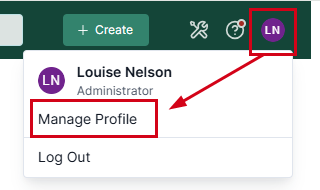
Was this article helpful?
That’s Great!
Thank you for your feedback
Sorry! We couldn't be helpful
Thank you for your feedback
Feedback sent
We appreciate your effort and will try to fix the article