The Matter View page offers a consolidated, chronological view of matter activities and documents, which allows you to quickly locate specific documents, emails, notes, phone calls, or SMS messages. This provides better visibility into the most recent developments within any matter in Actionstep Practice Management. As you work with specific items in the list, you can preview them and perform additional actions , like print, email, and edit—just to name a few.
NOTE: While working on the Matter View page, to move a file or email to a different folder, either right-click on a file and choose Move from the shortcut menu, or select the document and click the More drop-down list in the preview pane's toolbar. Then choose Move.
Before you begin:
- An admin can manage permissions for this option by going to Admin > Users & Permissions > Menu Permissions (right-hand side of the page) > Action_Details_Menu and select/clear Matter View to enable/disable it for that system role.
- Starting December 2025, folders are available on the Matter View page. If you need to disable the folders pane, an admin can go to Admin > General settings > Feature preview > Folders for Matter View. (This feature flag will be available only temporarily as this option is introduced to users.)
To work with the Matter View page:
- In Practice Management, view a specific matter. (See Editing a Matter for help.)
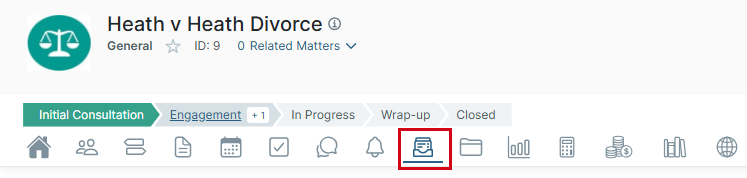
- Click the View icon.
- Use any of the following options to work with files on this page:
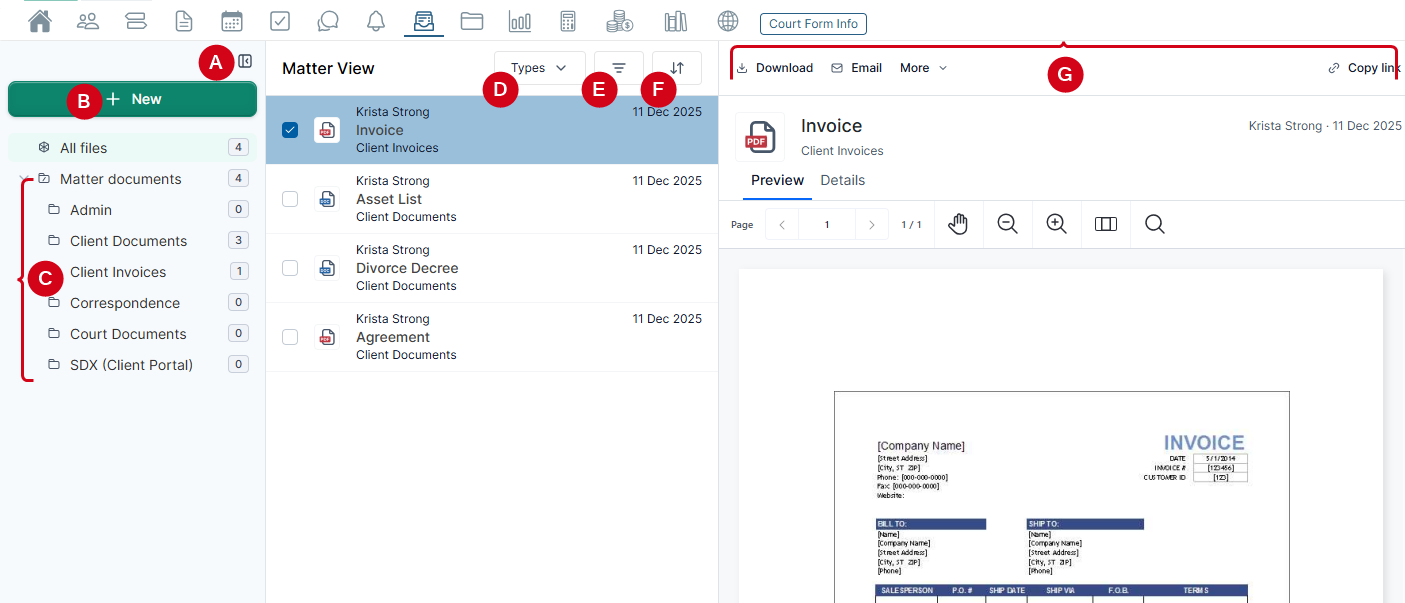
- Click the Expand / Collapse icon to hide and show the folders list. When you minimize the toolbar, it shows basic icons that let you still access options in the folder pane.
- Click New and choose one of the following options:
- Generate document: Select a template and generate it. The completed document will be added to this list of documents on the Matter View page.
- Create folder: Choose this option to add a new folder to the list view.
- Click a specific folder name to view its contents, which can be documents or other subfolders.TIPS:
• The number next to the Matter documents folder shows the total number of files in this folder and any of its subfolders. The All files option shows the total number of files accessible from the View page.
• Select a folder and click the More menu in the preview pane to select from the following actions: Move, Add Folder, Rename, Zip, and Trash. You can also perform these same actions by right-clicking on a folder and choosing from the shortcut menu.
• Double-click a file in the list to open it using your preferred method for editing documents. (See Getting to Know the 'My Profile' Page to learn how to set up this preferred method.) - Filter the documents you're viewing by a specific type: Document, Email, or File note. (These options may be available either directly in the toolbar or in the Types drop-down list.)
- Click the Filter icon to refine the list of files by contact information or by modification dates.
- Click the Sort icon to sort the file list by Name, Last modified, and Modified by.
- Select a specific document or email to preview it in the Preview pane. While previewing the file, use the toolbar to perform a specific action, like Download, Open, Email, Move, Rename, etc. Your options change depending on the type of file you're previewing.
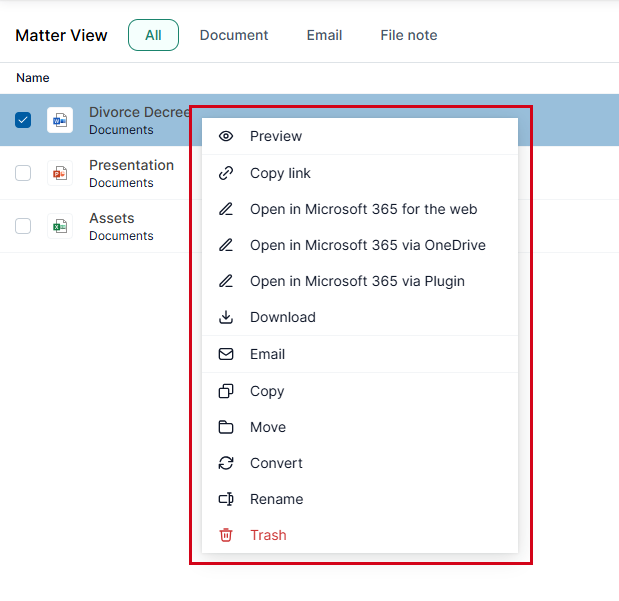
NOTE: If your Actionstep Practice Management database and user profile are connected to DocuSign, you may see a Send for Signing option in both the shortcut menu and the Preview pane. This allows you to send the document to DocuSign. To learn more, see Sending Documents Using DocuSign.
Additional Resources:
Was this article helpful?
That’s Great!
Thank you for your feedback
Sorry! We couldn't be helpful
Thank you for your feedback
Feedback sent
We appreciate your effort and will try to fix the article