In Actionstep Practice Management, you can view a list of restricted matters. This report includes information about the matter as well as who the matter was assigned to, who restricted the matter, and whether the person that restricted it is an owner of the matter.
Only administrators with authority can view this list.
To view the list:
- In Practice Management, click Admin on the main toolbar. The Admin page appears.
- Click Audit logs & reports (located on the right side of the page). The Audit Logs page appears.
- Click View next to Restricted Matter List. The Restricted Matters page appears.
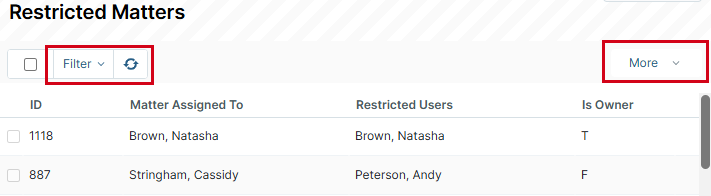
- Review the information:
- ID shows the matter's ID.
- Matter Assigned to shows who the matter is currently assigned to.
- Restricted Users shows who can access the matter.
- Is Owner helps you quickly see whether the owner is the same as the user who can access the matter. (T indicates yes, while F indicates no.)
TIPS:
• Use the Filter drop-down list to further refine the information displayed in the list.
• Click the Refresh icon in the toolbar to update the list with any changes that have been made while you have been viewing it.
• Click the More drop-down list to export/print the list or set up a Heads Up rule.
• Use the Filter drop-down list to further refine the information displayed in the list.
• Click the Refresh icon in the toolbar to update the list with any changes that have been made while you have been viewing it.
• Click the More drop-down list to export/print the list or set up a Heads Up rule.
Additional Resources:
Was this article helpful?
That’s Great!
Thank you for your feedback
Sorry! We couldn't be helpful
Thank you for your feedback
Feedback sent
We appreciate your effort and will try to fix the article