When users in your firm sign in to Actionstep, you can mandate they use single sign-on (SSO) and multi-factor authentication (MFA). Forcing these options can improve security and provide a seamless sign-in experience for your staff.
- SSO enforcement: This option enables your organization to enforce sign-in policies for your users by removing individual ID and password authentication options and forcing users to use your corporate identity providers (e.g., Google sign-in or Microsoft sign-in).
- MFA enforcement: This option enables your organization to force users to complete the multi-factor authentication setup when they first sign in to Actionstep. Users will no longer be able to dismiss/postpone this MFA setup step. (You can also disable this reminder permanently without requiring MFA.)
Both SSO and MFA enforcement options allow you to exclude individual users from the requirements. For example, you may have contractors or other types of users that do not meet the SSO or MFA requirements your regular users do, so you can add them to exclude lists and they won't be prompted to complete these types of sign-ins.
Before you begin:
- Enable these options by going to Admin > General settings and toggling Enforce MFA and SSO to on. (Note, this does not immediately enforce these options. It just makes the settings you do need to apply available.)
To use these options:
- In Actionstep, go to Admin > Users & permissions. The Users & Permissions page appears.
- Click Authentication settings on the right side of the page. The Authentication Settings page appears.
- Do the following, based on your needs:
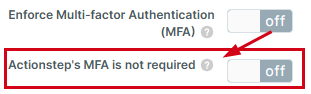
- Toggle Enforce Multi-factor Authentication (MFA) to on to force users to complete their MFA setup.NOTE: If you leave this option toggled to off, the Actionstep's MFA is not required option is shown. Toggling this option (Actionstep's MFA is not required) to on will suppress the Multi-factor Authentication page entirely, and when a user signs in, they will be taken to their selected landing page in Actionstep.
Please note, if your users have enabled MFA at the user profile level, they will still be prompted for a code when they sign in. If they no longer want to use MFA, they'll need to disable it. See Setting Up Individual Multi-Factor Authentication (MFA) for instructions. - Toggle Enforce Single Sign-On (SSO) to on to force users to instead use Sign in with Microsoft or Sign in with Google. (The Email and Password fields will still be shown but if the user attempts to sign in using these fields, they will be asked to use Microsoft or Google.)
- Toggle Enforce Multi-factor Authentication (MFA) to on to force users to complete their MFA setup.
- Optionally, if you have users who can bypass these options, for either option, click Add User and then select the users.
Similarly, if your firm enables Enforce Multi-Factor Authentication (MFA) and a user has not completed their authentication, when they attempt to sign in from a non-standard sign-in page (like the Outlook add-in), they will be prompted to sign in from Actionstep's primary sign-in page first. They can then try to sign in again from the Outlook add-in.
Additional Resources:
- Setting Up Multi-Factor Authentication (MFA)
- Logging In with Microsoft or Google Sign-On (SSO)
- Logging In to Actionstep
Was this article helpful?
That’s Great!
Thank you for your feedback
Sorry! We couldn't be helpful
Thank you for your feedback
Feedback sent
We appreciate your effort and will try to fix the article