This article will walk you through signing in to Actionstep for the first time, where and how to sign in, how to sign out, and how to reset your password.
Once you've set up your Actionstep profile, you can access your system by going to https://go.actionstep.com.
Additionally, please note the following items around signing in to Actionstep:
- Admins do not have access to change other users' passwords. If a user forgets their password, the user will need to reset it by going to the sign-in page at go.actionstep.com.
- If you just simply want to change your password (not because you've forgotten it), you can do so by going to My Profile. (See Getting to Know the 'My Profile' Page.)
- If you are having issues signing in that are unrelated to IDs and passwords, try signing in using a different browser. It may be that your current browser uses an auto-fill system and attempting to sign you in using outdated credentials. If that doesn't seem to solve the problem, contact Actionstep Support.
Signing in to Actionstep for the First Time
When you are first granted access to Actionstep, you will receive an email invitation, which includes a link to the system sign-in page as well as the email address you will use to sign in and a temporary password. This email is usually sent by the System Administrator.
To sign in:
- In the email you received, click the link that will launch Actionstep. An Actionstep sign-in window appears.
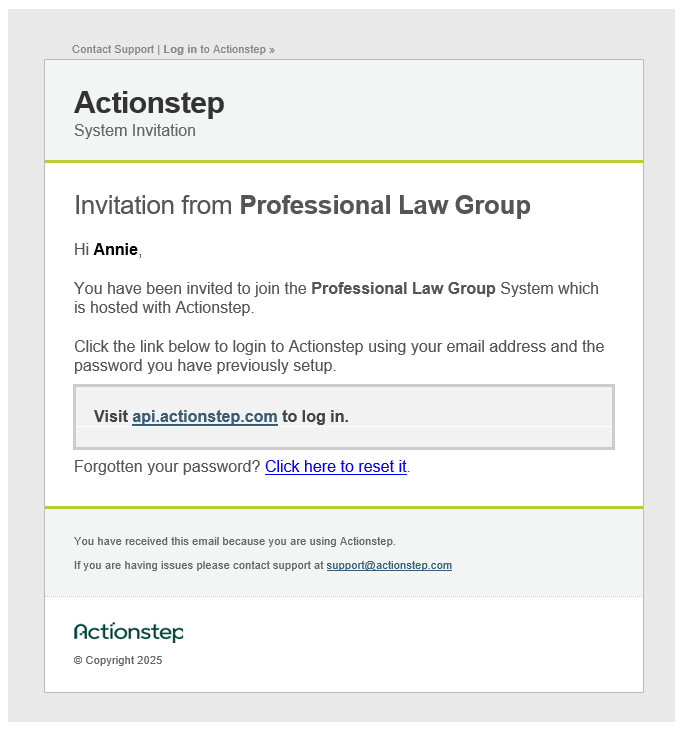
- Follow the onscreen prompts to set up your sign-in profile in Actionstep.
To keep your account safe, here are a few tips on how to create a strong password:
- Make your password 16 characters or longer: Long passwords or passphrases are recommended to be more secure than passwords with different alphanumeric characters and letters. A passphrase combines multiple unrelated/random words and is longer than 15 characters. You can use spaces in between words, dashes, and periods.
- Don’t start or end your password with a space character: The space character cannot easily be "seen" when it is at the start or end of a password. To prevent inadvertent use, Actionstep will not accept a password that starts or ends with a space character.
Admin users may enforce single sign-on or multi-factor authentication protocols for your firm. See Enforcing Multi-Factor Authentication or Single Sign-On for Users (Admin) for more information.
Signing in to Actionstep Once Your Profile is Set Up
After you've set up your user profile, you can sign in to Actionstep at any time. If you forget your password, use the Forgotten password link on the sign-in page to reset it.
To do this:
- Go to http://go.actionstep.comand enter your email address and password.
Signing Out of Actionstep
To end your Actionstep session:
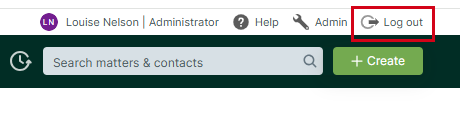
- Click Log out at the top-right corner of the page.
How-To Video
Additional Resources:
- Actionstep Overview
- Actionstep Terminology
- Signing in with Microsoft or Google Single Sign-On (SSO)
- Setting Up Individual Multi-Factor Authentication (MFA)
- Enforcing Multi-Factor Authentication or Single Sign-On for Users (Admin)
Was this article helpful?
That’s Great!
Thank you for your feedback
Sorry! We couldn't be helpful
Thank you for your feedback
Feedback sent
We appreciate your effort and will try to fix the article