Single Sign-On (SSO) solutions provided by Google and Microsoft can streamline your authentication process, enhancing security and user experience by allowing seamless access to multiple applications with a single set of credentials. This reduces password fatigue and the risk of security breaches, promoting productivity and efficiency across organizations.
When signing in to Actionstep, you can sign in using either a unique ID and password or SSO.
To sign in using SSO:
- On the Actionstep sign-in screen, select Sign in with Microsoft or Sign in with Google.
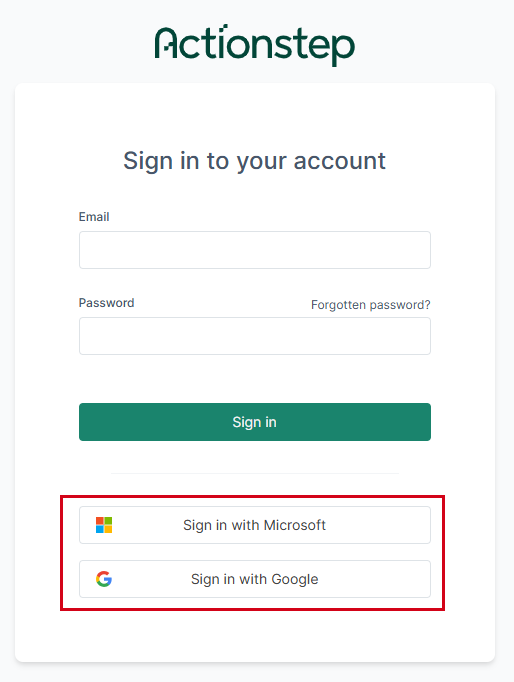
Clicking one of these options launches the respective service (Google or Microsoft) and prompts you to sign in (if you're not already signed in).
Additionally, if multi-factor authentication is enabled in both Actionstep and your connected service, you will need to authenticate using both services.
Finally, once you are signed in to your account, Actionstep will check to see if your Microsoft or Google sign-in email address is the same as a sign-in address for Actionstep. If it is, you will be signed in with access to your Actionstep system.
Additional Resources:
Was this article helpful?
That’s Great!
Thank you for your feedback
Sorry! We couldn't be helpful
Thank you for your feedback
Feedback sent
We appreciate your effort and will try to fix the article