Once Builder is enabled for your firm, a Builder Workspace admin will need to manually add all users to the workspace who need access for creating or editing templates.
The Builder Online Workspace supports two types of roles:
- User: In the Online Workspace, a person in the User role can only generate records (i.e., documents or sets of documents). They cannot design or build templates (or any of the components associated with templates).
- Admin: A person in the Admin role can design and build templates (and all of the components associated with them). They can also add users to the Workspace and access Workspace settings.NOTE: Because official documents are generated in Actionstep, and because documents are only generated in the Online Workspace as part of testing your automation work, assigning staff as "Users" isn't practical. Instead, users you add to the workspace should be set up as admins so they have full editing access.
Once you've added users to your Online Workspace, you can customize additional access by creating user groups, which allow you to grant members of specific groups access to specific catalogs.
Adding Admins to Your Builder Workspace
To add users to your Online Workspace:
- Launch the Builder Online Workspace. (See Accessing the Builder Online Workspace for help.)
- Click the user icon in the top-right corner of the page and choose Users.
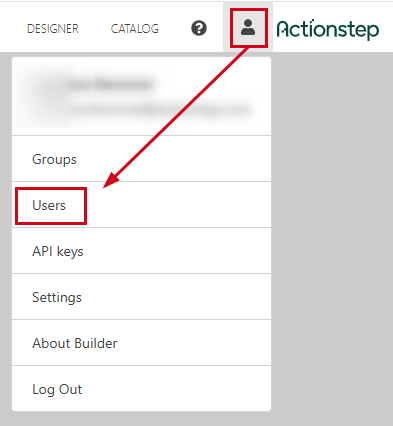 The Users page appears.
 - In the list of users on the left, click Add New User.
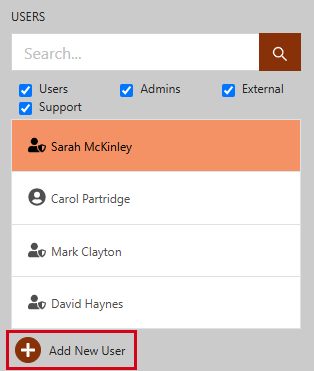 The New User window appears.
 - Enter the new user's Name and Email address.
- Click the Assign role drop-down list and choose Admin.
- Click OK. The user is created and an email is sent to their email address with instructions on setting up their account.
Creating Groups of Users
In the Builder Online Workspace, you can create groups of users and then grant them access to specific catalogs (or matter types). This provides a level of protection that ensures users can only access those catalogs they should be involved with.
To do this:
- Launch the Builder Online Workspace. (See Accessing the Builder Online Workspace for help.)
- Click the user icon in the top-right corner of the page and choose Groups. The Groups page appears.
- Click Add New Group (located at the bottom-left corner of the page). The Add New Group window appears.
- Enter a group Name and click OK. The group is added to the Groups list.
- In the Groups list, click the group you just created. The Details panel is updated with information about the group.
- While viewing the Users tab, click Add users. The Add Users window appears.
- Click on each user name you want to add to the group and click OK.
- Click the Permissions tab.
- Review the list of catalogs and select the Full Access checkbox for the catalogs the users in the group should have access to.
- Click the Save icon in the top-right corner of the Details panel to save your changes.
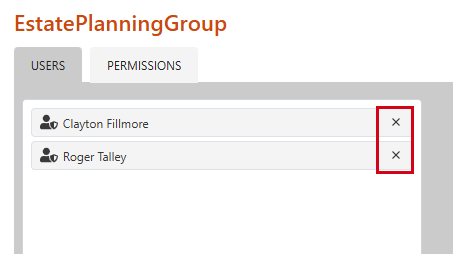 To delete a group, hover over the right side of the group name until an ellipses icon appears. Then choose Delete group.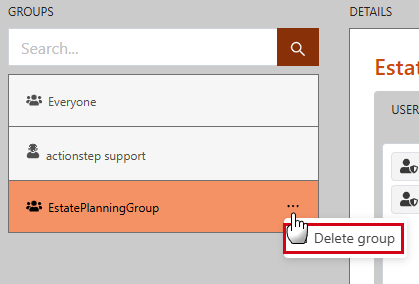
Was this article helpful?
That’s Great!
Thank you for your feedback
Sorry! We couldn't be helpful
Thank you for your feedback
Feedback sent
We appreciate your effort and will try to fix the article