In this article:
- How-To Video
- Finding an Authentication App
- Setting Up Multi-Factor Authentication
- Disabling Multi-Factor Authentication
- Resetting Multi-Factor Authentication When Locked Out
Tax authorities in many countries strongly advise that any person with access to online accounting (and billing) data have multi-factor authentication (or MFA) enabled for their system. Multi-factor authentication is a security method that requires users to verify their identity using two or more independent factors—such as a password and a code from an authenticator app. It significantly reduces the risk of unauthorized access by ensuring that even if one factor is compromised, attackers still can’t get in.
MFA can be enabled on a per-user basis (described below), or your admin can enforce MFA for all firm employees (described in Enforcing Multi-Factor Authentication or Single Sign-On for Users (Admin)).
Finding an Authentication App
Actionstep's multi-factor authentication requires the use of an authentication app (like Microsoft Authenticator or Google Authenticator) on your phone or computer. Multi-factor apps provide enhanced security by requiring users to authenticate through different methods, such as passwords, biometrics, or security tokens. When you sign in to Actionstep, you will be prompted to enter the code that this app will display.
Two-factor authentication can be made mandatory for your users. See Enforcing Multi-Factor Authentication or Single Sign-On for Users (Admin) for information.
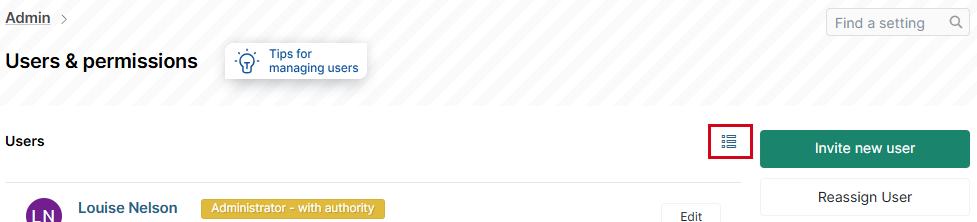 Then use the MFA column to determine who is using MFA: a red X indicates those who have not enabled it, while a checkmark indicates those who have.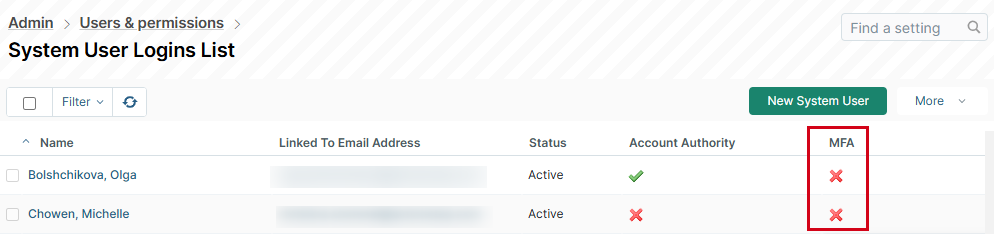
To set up an app:
- Download and install an authenticator app.
Actionstep recommends downloading and installing one following authenticator apps:AppGoogle PlayApp StoreMicrosoft Authenticator Download here Download here Google Authenticator Download here Download here Twilio Authy Download here CAUTION: Make sure if you search your app store for any of these authenticators that the result you choose is the intended one, as top results may be advertising results in some cases.
Additionally, these recommendations are not an official endorsement. You are responsible for evaluating and selecting the appropriate tools for your needs. Actionstep is not liable for any issues arising from the use of these tools, including security breaches, data loss, or inaccuracies. The functionality and availability of these tools may change over time. Always refer to the tool vendor's documentation for the most up-to-date information. - Follow the app's instructions to complete the process, then proceed to the next section, "Setting Up Multi-Factor Authentication".
Setting Up Multi-Factor Authentication
Activating multi-factor authentication is done on the user's My Profile page.
To do this:
- In Actionstep, click your profile name in the global toolbar. This opens the My Profile page.
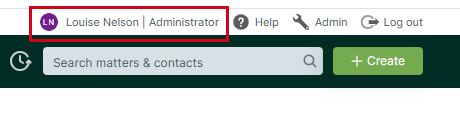
- In the Password section, check Multi-factor authentication. If it is not configured, click Activate to activate it.
 The Set up multi-factor authentication (MFA) window appears.
- Using your MFA app, either scan the QR code on your device's window, or click Show secret key for manual configuration below it to show the secret key. The secret key may be manually entered in your app.
- Your Authentication App will provide you with two codes which you should type into fields on the Actionstep window. The App may show one code at a time.
- Once both codes are entered, click Save to continue.
Multi-factor authentication is now enabled. When you next sign in to Actionstep, you will sign in as you normally do. However, you will be prompted to enter a verification code, at which point you can open your authentication app on your phone to see the code that you must enter and then confirm.
Disabling Multi-Factor Authentication
It's not recommended you disable multi-factor authentication, but if necessary, you can disable it once you have signed in to your system.
To do this:
- Sign in to Actionstep.
- Click your profile name in the global toolbar. This opens the My Profile page.
- In the Password section, click Deactivate next to Multi-factor authentication.
- When prompted, enter an Authentication code from your app and confirm the removal.
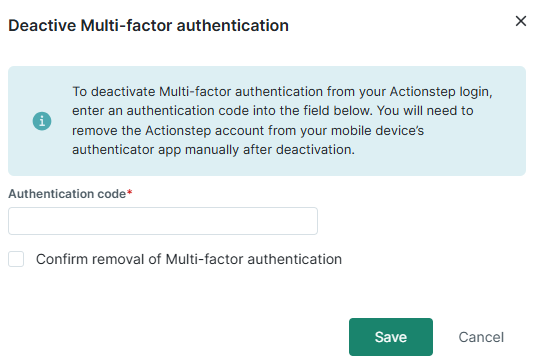
- Click Save to save your changes and update your sign-in method.
Resetting Multi-Factor Authentication When Locked Out
Occasionally, you or another system user may be locked out of Actionstep due to being unable to complete the multi-factor authentication process. In that case, an admin (with authority) can disable MFA for that user.
To do this:
- In Actionstep, go to Admin > Users & permissions. The Users & Permissions page appears.
- Either select the user's name or click Edit next to their name.
- On the Edit user window, find the Multifactor Authentication section.
- Toggle MFA Enabled to off.
- Select I accept the billing changes and understand the terms of use.
- Click Save.
Now, the user can access the system without multi-factor authentication. They should then re-enable it themselves using the steps detailed above.
How-To Video
Related Articles:
Was this article helpful?
That’s Great!
Thank you for your feedback
Sorry! We couldn't be helpful
Thank you for your feedback
Feedback sent
We appreciate your effort and will try to fix the article