There are several ways you can set up SMS alerts for staff members with a login to Actionstep. These alerts can be:
- Reminders that are linked to items like calendar appointments and tasks
- Alerts set up at the matter level
The location of alerts will vary depending on the item they are linked to.
Before you begin:
- If you want to use SMS reminders, an admin will need to enable SMS messaging in your system. See Setting Up SMS Alerts (Admin) for instructions.
To set an alert for a calendar appointment:
- In Actionstep Practice Management, create the appointment.
- On the Event tab of the Create New Appointment window, click Add reminder. Several fields are enabled.
- Click the drop-down and select when you want the alert to be sent/displayed.
- Select the type of reminder (Email, SMS, or Popup). You can select multiple options.
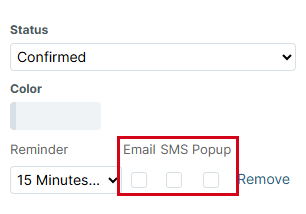
Any Actionstep staff member invited to the appointment will get a reminder of the appropriate type at the indicated time.
To set an alert for a task:
- In Actionstep Practice Management, create a task or edit a task.
- While viewing the task, click the Reminder / Workflow tab.
- Click the Reminder drop-down list and choose when you want the reminder to be sent.
- Select the type of reminder (Email, SMS, or Popup). You can select multiple options.
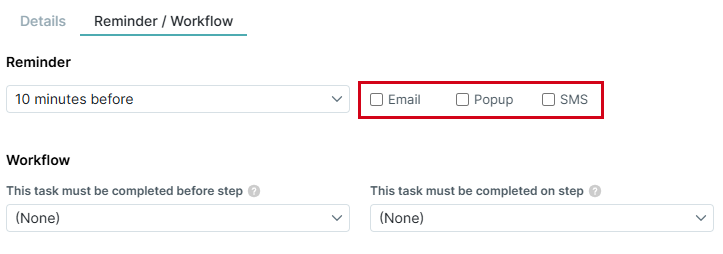
The reminder alert will be sent to the person the task is assigned to.
To set up an alert for a matter
- In Actionstep Practice Management, view the matter.
- Click the Alerts menu icon. The Alerts page for the matter appears.
- Click Create alert. The Add Notification page appears
- Enter a Due date.
- Choose who the alert should be Assigned to.
- Enter the alert Message.
- Select the Method of delivery. Your options include SMS, E-Mail, and Popup.
- Click Submit. The notification will be sent at the selected time.
Additional Resources:
Was this article helpful?
That’s Great!
Thank you for your feedback
Sorry! We couldn't be helpful
Thank you for your feedback
Feedback sent
We appreciate your effort and will try to fix the article