You can generate a fix fee invoice.
To do this:
- In Actionstep Practice Management, click the global Create button and choose Bill from the Billing section. The Fixed Fee Bill window appears.
- Choose What amount you would like to bill from the line of options that is displayed:
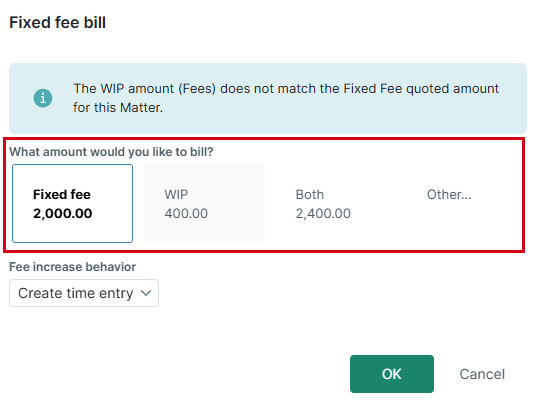
- Click the Fee increase behavior drop-down list and choose from these options:
- Create time entry: Choose this option to create a time entry for the fixed fee amount. The Create Time Entry window will be displayed where you can enter Hours Worked and Hrs to bill, choose a Quick-code, or enter a narration in the Description field.
- Hide line pricing and show total only: Choose this option to view the Create Bill window, which shows your invoice with a fee adjustment only. It will not be associated with any time entries. You can, however, include an Invoice description on the invoice. (To ensure the narration appears correctly, make sure you use the right invoice template. To learn more, see Invoice Templates.)
- Click Save to save your changes and generate the invoice.
NOTES ABOUT REPORTING DIFFERENCES: When using the time entry method, the time entry will appear in any reports that have time entries and any custom list views that contain time entries
If you are using the adjustment method, this will only appear in reports where adjustments are listed. If you use these to track fee earners' billable or billed time entries, it will not appear on any time entry custom list views.
If you are using the adjustment method, this will only appear in reports where adjustments are listed. If you use these to track fee earners' billable or billed time entries, it will not appear on any time entry custom list views.
Additional Resources:
Was this article helpful?
That’s Great!
Thank you for your feedback
Sorry! We couldn't be helpful
Thank you for your feedback
Feedback sent
We appreciate your effort and will try to fix the article