The following questions and answers can help you troubleshoot some common issues with the Actionstep Legal Accounting integration:
- How do I set up the Legal Accounting Integration?
- How are users set up in both Practice Management and Legal Accounting?
- Can I create matters (files) in Legal Accounting?
- We've used the Reference field in a matter for [a very specific purpose]. What do we do?
- What financials are managed in Legal Accounting and not Practice Management?
- We use Legal Accounting with NetDocuments. Anything to be aware of?
- How do I create a new user?
- How do I set up an ethical wall?
- How do I create or edit billing rates?
- How do I create or edit task and activity codes?
- How do I correct a contact created with the wrong numbering sequence?
- How do I correct a vendor that was created using the wrong numbering sequence?
- How do I correct a matter created with the wrong matter number?
- How do I change a client incorrectly assigned to a matter?
- How do I set billing percentages for multiple clients on a matter?
- How do I correct a matter configured with multiple clients in error?
- How do I correct "Failed to get User Credentials" errors in Practice Management?
- How do I configure the Time & Fee Restriction Date?
- How do I configure ‘Display Time as Decimals or Hours’, Time Rounding, and Working Hours?
- How do I change contact addresses?
- How do I import additional contacts and matters into an integrated system?
- How do I close a contact or matter?
How do I set up the Legal Accounting Integration?
If you are interested in using the Legal Accounting integration, you must work with Actionstep's migration team to review and assess your accounting workflow. Part of this process is ensuring that your existing data in both Practice Management and Legal Accounting is correctly mapped and ready to be synced across both systems. Please contact your sales representative for more details.
How are users set up in both Practice Management and Legal Accounting?
Users' emails are validated in both systems when linking and accessing data between both Practice Management and Legal Accounting.
Can I create matters (files) in Legal Accounting?
No. All matters must be created first in Practice Management to allow you to work through the matter workflow using Practice Management. Once you save the matter and it's created in Legal Accounting, however, you can edit the fields of the matter that are common between the two systems and the changes will be automatically synced. To learn more, see Working with Matters in Practice Management and Legal Accounting.
We've used the Reference field in a matter for [a very specific purpose]. What do we do?
If your firm is using the matte's Reference field for something other than the matter number, you will need to repurpose that data and clear those fields before you can use the integration. Your integration partner should be able to help.
What financials are managed in Legal Accounting and not Practice Management?
The billing arrangement for matters must be maintained in Legal Accounting along with client costs, checks, payments, trust, reconciliation, pre-billing, billing, and reporting.
We use Legal Accounting with NetDocuments. Anything to be aware of?
If you have been using an existing Legal Accounting / NetDocuments integration, the Legal Accounting integration will no longer share contact and matter information with NetDocuments. Instead, you will need to set up an Practice Management / NetDocuments integration.
How do I create a new user?
Users must be created in both Practice Management and Legal Accounting. Permissions must be established in both systems, except for Time Entry permissions which are configured in Legal Accounting only.
How do I set up an ethical wall?
Ethical walls (Legal Accounting) and restricted matters (Practice Management) must be configured in each system separately. For instructions, download Setting Up an Ethical Wall (a PDF document) or see Restricting Access to a Matter.
How do I create or edit billing rates?
Billing rates are configured in Legal Accounting > Admin > Rates & Codes.
How do I create or edit task and activity codes?
Task and activity codes are configured in Legal Accounting > Admin > Rates & Codes.
How do I correct a contact created with the wrong numbering sequence?
You can change the reference number for a contact in either Practice Management or Legal Accounting:
In Practice Management:
- Edit the contact.
- Change the text in the Reference field
- Save your changes.
In Legal Accounting:
- Look up the contact in Contact Manager.
- Scroll down and expand Other.
- Select Change Contact # .
- Click Save.
How do I correct a vendor that was created using the wrong numbering sequence?
Changing the reference# for a Vendor can be done in either Practice Management or Legal Accounting.
In Practice Management:
- Look up the Vendor. (They will be listed under Contacts.)
- Click Edit.
- Update the Reference number.
- Click Save.
In Legal Accounting:
- Look up the vendor in Contact Manager.
- Scroll down and expand Other.
- Select Change Contact #.
- Click Save.
How do I correct a matter created with the wrong matter number?
Changing the reference# for a Matter can be done in either Practice Management or Legal Accounting.
In Practice Management:
- Find and view the matter.
- Click the information icon next to the matter description and choose Edit.
- Change the File Reference number.
- Click Save.
In Legal Accounting:
- Look up the matter in File Manager.
- Scroll down and expand Other.
- Select Change File #.
- Apply the change.
- Click Save.
Changing the Reference number to one that is lower than the next available number will reset the numbering sequence to the one that you manually entered. The system will attempt to number from that point if there are numbers available to be used, otherwise it will revert to the next available number in your sequence. To prevent the number from resetting to a lower number, create a new record and manually enter the next reference number in your sequence. This will force the numbering to increment from there.
How do I change a client incorrectly assigned to a matter?
Changing the client on a matter can only be done in Practice Management.
In Practice Management:
- Find and view the matter.
- Click the Parties menu icon.
- Click the View Menu icon next to the icon showing the contact's initials and choose Remove Party from the list that appears.
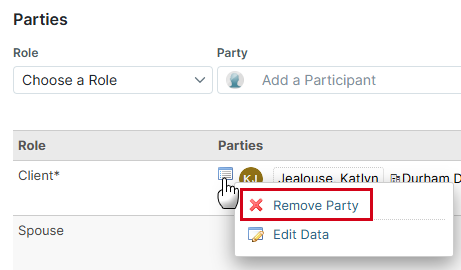
- Repeat this process for other contacts, if necessary.
- Click the drop-down list for the Role you want to reassign and choose the correct contact.
How do I set billing percentages for multiple clients on a matter?
In Practice Management:
- Find and view the matter.
- Click the Parties menu icon.
- Ensure there are multiple client contacts assigned to the matter. (Note, the first client on the list is assumed to be the primary contact.)
- Look up the matter in Legal Accounting > File Manager.
- Go to the Split\Advanced Billing section.
- Set the Billing percentages as required.
How do I correct a matter configured with multiple clients in error?
In Practice Management:
- Find and view the matter.
- Click the Parties menu icon.
- Click the View Menu icon next to the icon showing the contact's initials and choose Remove Party from the list that appears.
- Repeat these steps for other contacts, if required.
How do I correct "Failed to get User Credentials" errors in Practice Management?
A Legal Accounting admin can refresh the system credentials.
To do this:
- In Practice Management, go to Admin > Legal Accounting.
- In the Connection section, click the ellipsis icon next to the integration name and choose Refresh credentials.
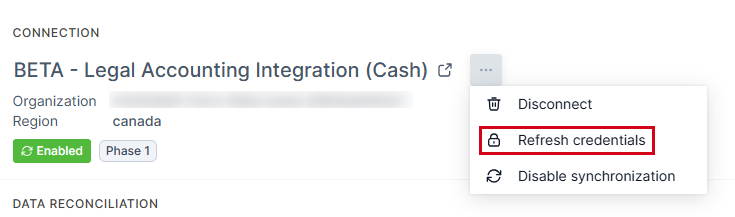
- Enter the Legal Accounting admin's sign-in credentials and click Refresh.
The window will be closed once successful
How do I configure the Time & Fee Restriction Date?
This setting is enabled from Legal Accounting > Admin > Settings> Features.
How do I configure ‘Display Time as Decimals or Hours’, Time Rounding, and Working Hours?
This setting is enabled from Legal Accounting > Admin > Settings> Features.
How do I change contact addresses?
These can be changed in either Practice Management or Legal Accounting, but you must be mindful of changing both the physical/mailing address in Practice Management or the primary/billing Address in Legal Accounting. See Working with Contacts in Actionstep Practice Management and Legal Accounting.
How do I import additional contacts and matters into an integrated system?
If contacts or matters need to be imported into Practice Management after the system is integrated, please note that the synchronization must be disabled prior to import and none of the imported records will synchronize to Legal Accounting automatically. They will sync and be auto numbered if they are edited in Practice Management; however. this is on a record-by-record basis.
How do I close a contact or matter?
Contacts and matters must be closed in both Practice Management and Legal Accounting as required. Closing a record in one system does not automatically close the record in the other system.
Additional Resources:
- About Actionstep Legal Accounting
- Working with Contacts in Practice Management and Legal Accounting
- Working with Matters in Practice Management and Legal Accounting
- Recording Time in Practice Management for Billing Using Legal Accounting
- Correcting Time Entry Issues Between Practice Management and Legal Accounting
- Contact and Matter Field Mapping Between Practice Management and Legal Accounting
- Understanding Contact and Matter Syncing in Legal Accounting
Was this article helpful?
That’s Great!
Thank you for your feedback
Sorry! We couldn't be helpful
Thank you for your feedback
Feedback sent
We appreciate your effort and will try to fix the article