Many firms require the ability to receive client funds prior to starting work (in the operating account in addition to the trust account). When you receive client payments, you can allocate them to be saved in the general retainer.
Before you begin:
- General retainers must be enabled in your system. See Setting Up General Retainers to learn more.
To do this:
- In Actionstep, click the global Create button and choose Client Receipt from the Billing section. The New Client Receipt window appears.
- Complete the fields. (See Processing Client Payments for help with individual fields.)
- Optionally, if the matter includes invoices that require payment, you can enter the Pay amount for each invoice in the table.
If the amount being received exceeds the amount that is allocated to invoices (or if you don't want to allocate any of the funds to a specific invoice), an information box prompts you to choose what you would like to do with the unallocated funds you are receiving.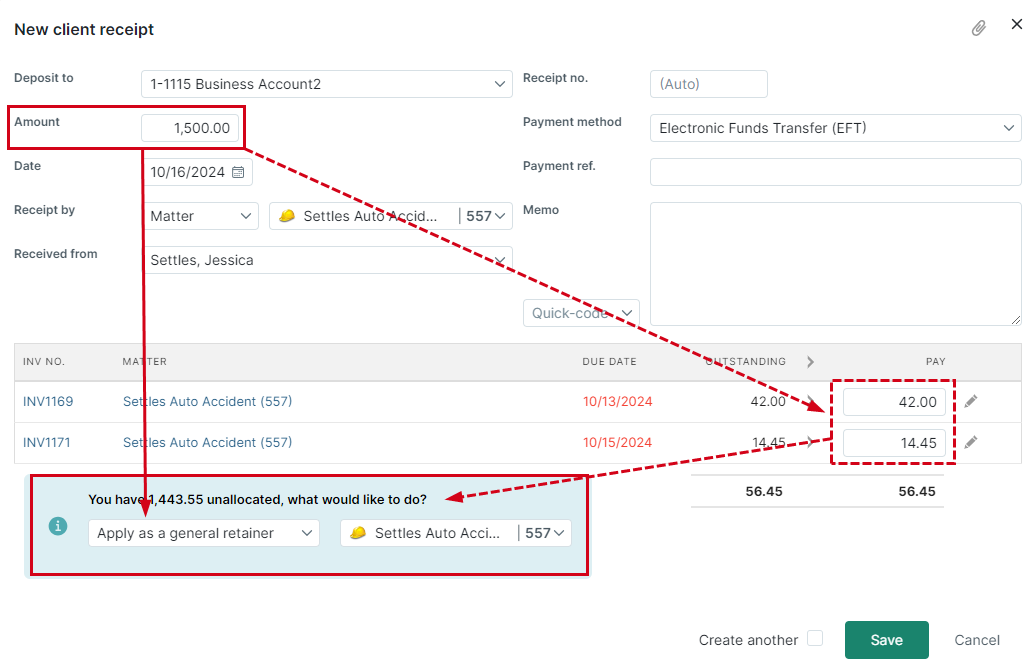
Leave Apply as a general retainer selected for this field.
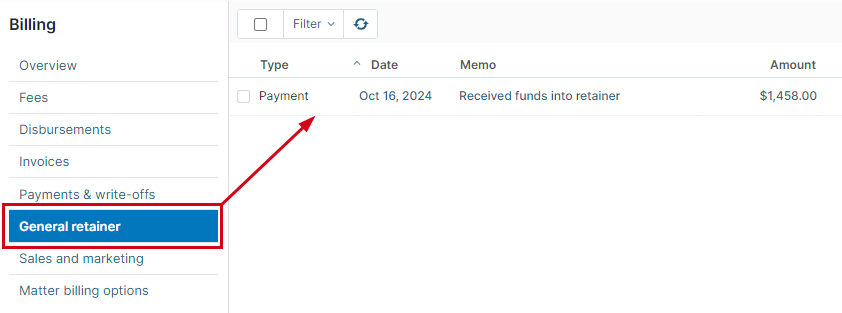
Click Save to save the client receipt. Any amounts allocated to the general retainer can now be viewed by clicking the General retainer link in the left-side menu.
Additional Resources:
Was this article helpful?
That’s Great!
Thank you for your feedback
Sorry! We couldn't be helpful
Thank you for your feedback
Feedback sent
We appreciate your effort and will try to fix the article