When you enable Actionstep Payments, you will see changes to your billing email template, including the addition of a link that will link your invoice email to Actionstep Payments.
The link shown will depend on whether you use any other payments integrations (Law Pay or Pro Pay) and how your invoice template is set up.
The following links are displayed on the invoice template depending on the following system set-up.
|
System Setup *In this table, BillPay refers to both Law Pay and Pro Pay |
Result Shown on Billing Email Template |
|
No BillPay No Actionstep Payments |
No payment link displayed |
|
No BillPay Actionstep Payments configured No Actionstep Payments link for the invoice |
No payment link displayed |
|
No BillPay Actionstep Payments configured An Actionstep Payments link for the invoice |
Display text prompting the user to pay, hyperlinked to the Actionstep Payments payment screen |
|
BillPay configured Actionstep Payments configured No Actionstep Payments link for the invoice |
Display BillPay link |
|
BillPay configured Actionstep Payments configured An Actionstep Payments link for the invoice |
Display text prompting the user to pay, hyperlinked to the Actionstep Payments payment screen |
|
BillPay configured No Actionstep Payments |
Display BillPay link |
NOTE: Actionstep Payments will only create a Payment link for a customer that has been billed since Actionstep Payments has been turned on.
An invoice email template may look something like this and can be accessed in Actionstep by going to Admin > Email & SMS > Email templates: 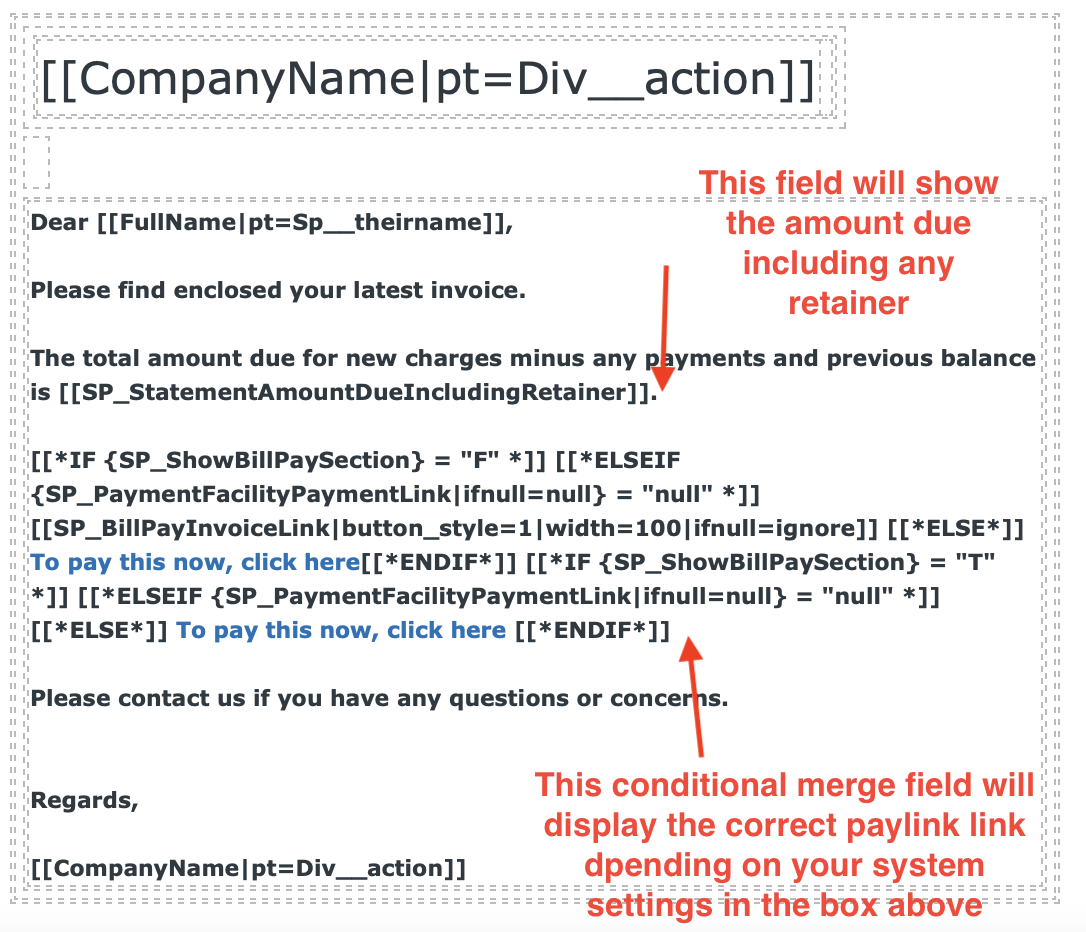
TIP: You can create your own custom invoice email template based on this by going to Admin > Email & SMS > Email templates and clicking New Template. Then select Standard Invoice Email from the Copy built-in template drop-down list. (This may also say Standard Bill Email.)
To learn more about invoice (or bill) templates, see Working with Bill Email Templates. If you need extra help working with templates, consider contacting a Certified Consulting Partner.
Updated