The information in this article applies to users using Actionstep Payments. Actionstep no longer offers this product to new customers but does maintain support for existing users.
Notifications in Actionstep Payments help you keep track of payments and banking activities. You can customize who receives notifications when payments are made and deposits are processed.
To do this:
- View the Actionstep Payments Portal Admin page. (See Accessing and Navigating Actionstep's Payments Portal for help.)
- Click the General link in the left-side navigation.
- View the Notification Settings section.
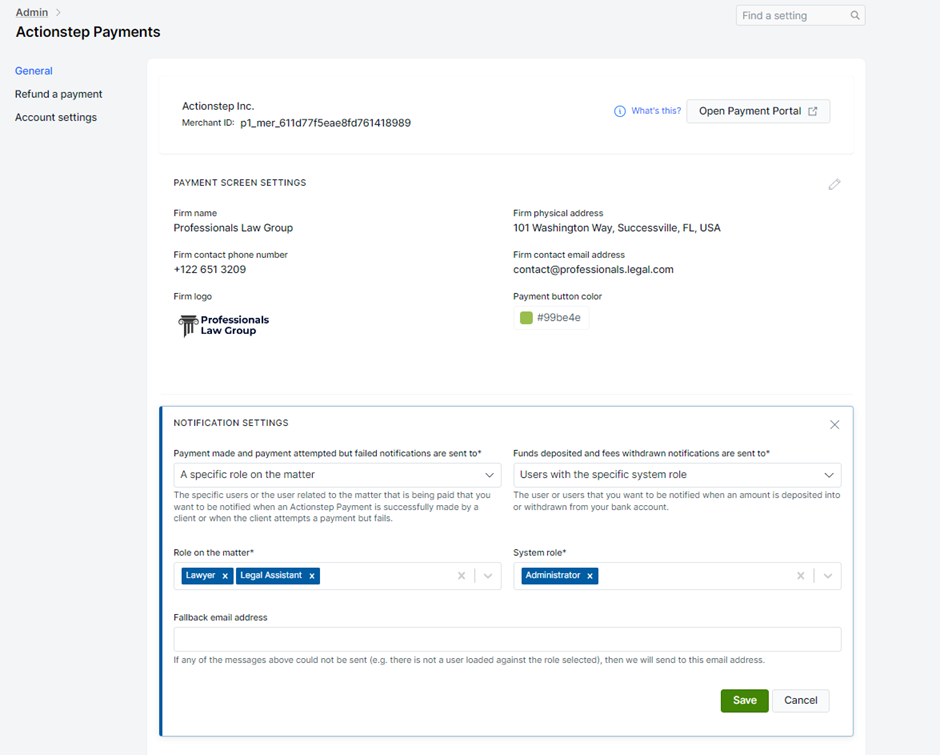
- Click the Payment made and payment attempted but failed notifications are sent to drop-down list and choose from the following options:
- All Actionstep users assigned to the matter
- The Responsible Lawyer matter participant
- A specific role on the matter
- A specific user or users
- Based on your selection, enter and select the specific role(s).
- Click the Funds deposited and fees withdrawn notifications are sent to drop-down list and choose from the following options:
- Nominated user(s)
- System role (this notification is especially useful where an Accounts or finance team occupy the same system role in your Actionstep system)
- Based on your selection, enter and select the specific role(s).
- In the case that a notification cannot be sent, enter the Fallback email address the message will be delivered to.
- Click Save to save your changes.
NOTE: A common reason a notification will not be sent is if it is assigned to a role that no participant occupies. For example, the message goes to the lawyer on the matter, but no lawyer has been assigned.
Updated