Once your Builder templates are automated, tested, and added to your Actionstep matter type, you can use them to create custom documents for your client or matter.
Actionstep keeps a history of all interviews you have previously generated for the matter. When generating a document that's already been created and saved to a matter, Actionstep lets you choose how you want to proceed. Specifically, you can select answers from a previously saved interview or start a new interview from scratch.
Before you begin:
- Associate the Builder template with the related matter type. (See Associating Builder Templates with a Matter Type (Admin) for help.)
Generating a Builder Document
Actionstep keeps a history of all interviews you have previously generated for the matter. When generating a document that's already been created and saved to a matter, Actionstep lets you choose how you want to proceed. Specifically, you can select answers from a previously saved interview or start a new interview from scratch.
Before you begin:
- To have the choice of choosing which answer set to use when generating a document, an admin must go to Admin > General settings > Feature preview and toggle Builder Interview Management to on.
To generate a Builder document:
- In Actionstep, open the matter you need to generate a Builder document for. (For help, see Editing a Matter.)
- Hover over the Documents menu icon and choose Generate. The Generate window appears.
- Click the Choose template drop-down list and select the template you want to use. Templates automated using Builder appear with (Builder) at the end of the filename.
- Review the name in the Document name field and change it, if needed.
- Choose where you want to save the document and provide the required information. For example, if you're using a NetDocuments integration, you can choose between saving to Actionstep or NetDocuments.
- Click Generate. Either the interview for the document appears, or if you're generating a document that has already been created, you may be presented with the following options:
- Use Existing Interview: This option uses the information that was entered the last time the interview was completed.
- Use Existing Interview & Refresh: This option uses the information that was entered the last time the interview was completed, but if changes have been made to data stored in Actionstep, it will attempt to pull that updated information for use with the latest document.
- Start from Blank: This option presents a completely blank interview.
- Answer the questions in the interview. (See Working with a Builder Interview (below) to learn about some of the features of the interview.)
- When you're finished with the interview, choose one of the following options:
- Create Docs: Click this option to generate and save the document(s) to the matter. To view the document(s) in the Document list, refresh the browser window. For additional help working with the documents, see the following articles:
- Finish Later: Click this option to save the answers you've entered so you can return later and complete the work. No document will be generated.
NOTE: If you generate and save the document again, a new document will be created.
Working with a Builder Interview
The following includes some typical elements you might see in a Builder interview:
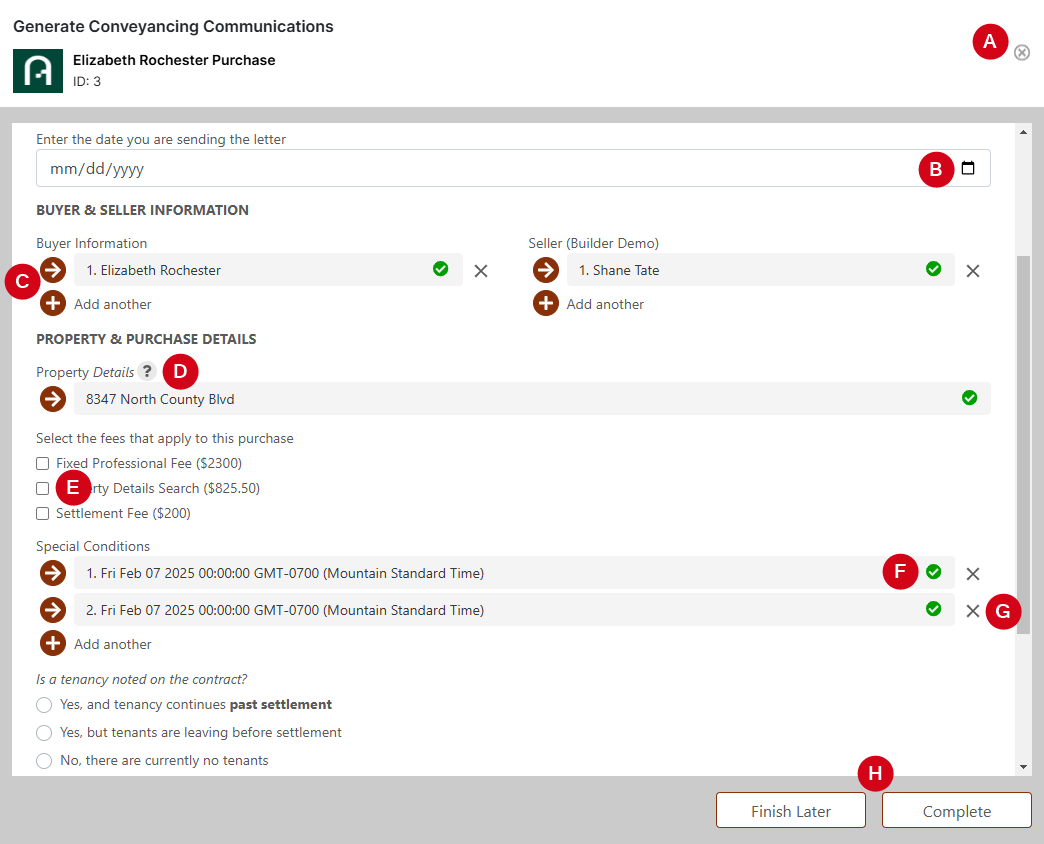
A. Click the X to close the interview window. No document will be saved.
B. If a field has an icon (like this calendar icon), click it to access additional tools for filling in the information.
C. Click the arrow icon to provide a specific answer (or set of answers) in the associated list. Click the plus icon to add another set of answers.
D. Click the help icon to view additional information about a question field.
E. Use checkboxes like this to select or clear options/answers.
F. Use this status indicator to quickly understand whether the required questions in this iteration of a list have been answered. (If they are not, this icon is orange.)
G. Click the X icon to remove this set of answers from the interview.
H. Click Finish Later to pause the interview and return to it later. To relaunch the interview later, complete the steps described in the previous section. Click Create Docs to finish generating and save the document.
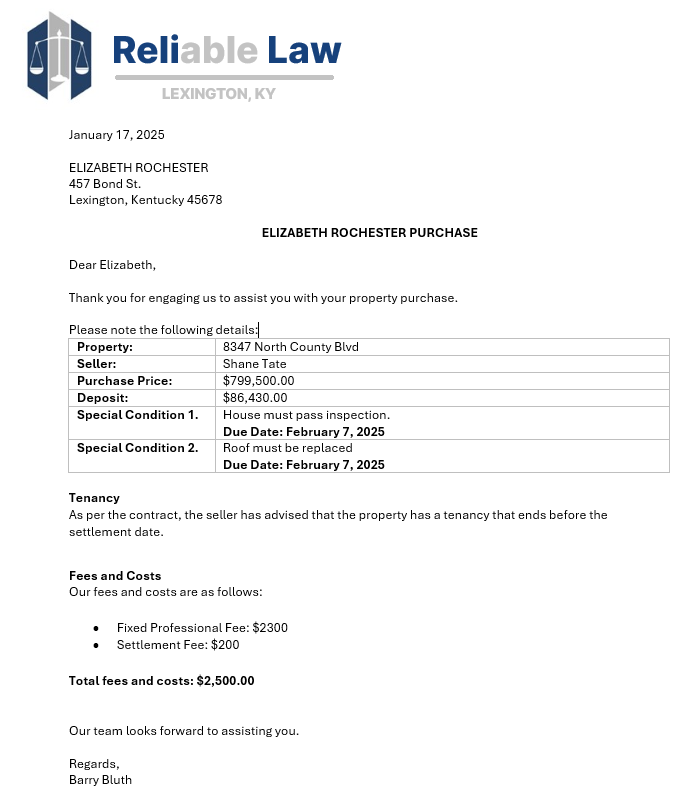
Once generated, you can review the completed document:
Updated