You can send outgoing SMS messages to clients or parties associated with a matter. This can be useful if you need to communicate with them or remind them of upcoming appointments. Messages are one-directional, meaning the recipient cannot reply. Additionally, SMS messages cannot be sent internationally.
There are three types of messages you can send:
- Standard SMS (text) messages (covered below)
- Automatically sent calendar reminders (see Sending Calendar Appointment Reminders to Clients)
- Staff alert reminders for items like appointments, tasks, and key dates (see Setting Up Staff Calendar and Task Reminders)
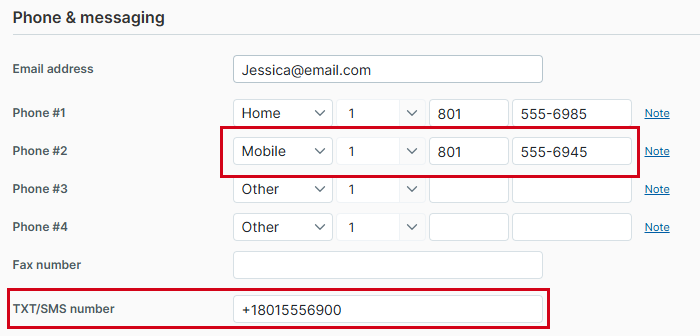
Additionally, participants you want to contact using SMS must have at least a Mobile phone number entered on their contact card. You can also enter a TXT/SMS number on their contact card, which can also be used for messaging.
Tips for sending SMS messages:
• Introduce you and/or your firm in the message to assure the recipient that
the
message is legitimate.
• The message you send will not be altered by Actionstep in any way. The
number
associated with the message will be displayed according to your geographical
location.
• Recipients cannot reply to SMS messages. As such, you may want to include
a Do Not Reply statement in your message.
NOTE: When drafting the SMS message, you can
manually
enter the phone number for the contact you want to text, but if the number
is
already entered on their contact card, it will be suggested automatically
when
you create the SMS message. To make sure the number is automatically available,
edit the contact's profile information and
in the Phone & messaging section, make sure
at
least a Mobile number has been added. You can
also
include a TXT/SMS number.
To send a text message to a contact:
- In Actionstep, access the Send SMS window by doing one of the following:
-
Click the global Create button and choose SMS from the Other section. (You may need to click Show all to see this option.) The Send SMS window appears.
TIP: If you create an SMS message while viewing the matter, the SMS will automatically be assigned to that matter.
- View the contact's profile card and click the Txt/SMS number. The Send SMS window appears.
- Click Comms > SMS Messages. Then click Create SMS. The Send SMS window appears.
-
- On the Send SMS window, click the To drop-down list and choose the contact or participant you want to receive the message.
As long as a Mobile or TXT/SMS number is assigned to the contact, one of those numbers will be shown in the Mobile field. - If the matter is not selected (based on where you initiated the Send SMS task), click the Matter drop-down list and select the associated matter.
- Enter your Message text. You may want to include a Do Not Reply note in the message so that recipients don't attempt to respond to the message.
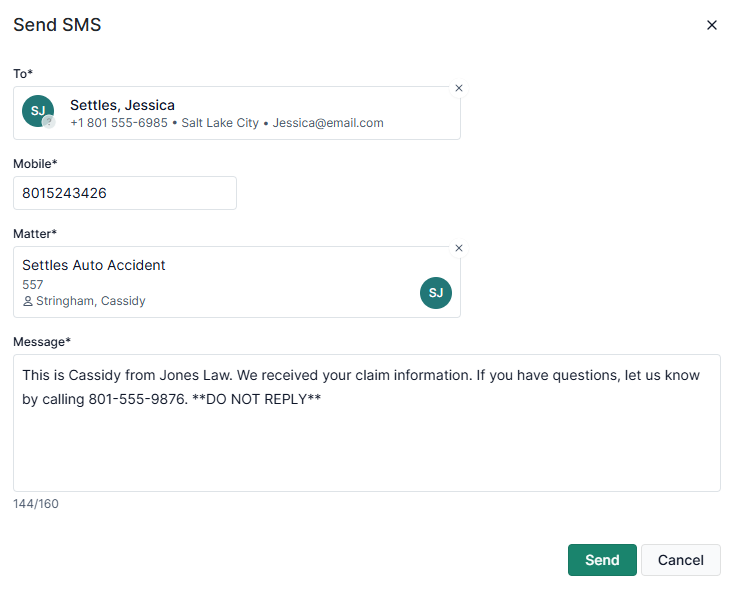
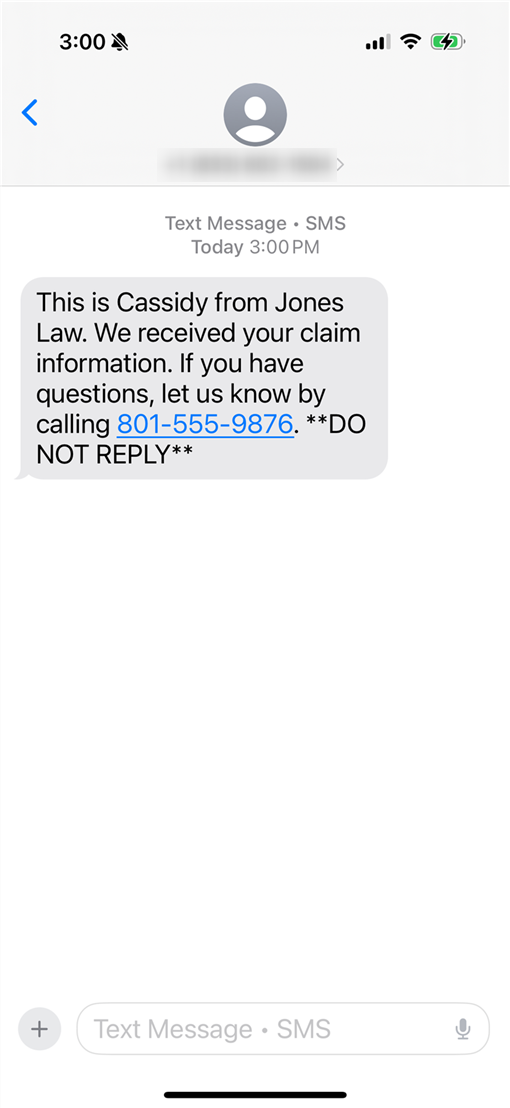
- Click Send to send the message. The sent message may look something like this:
Additional Resources:
- Setting Up SMS Alerts and Calendar Reminders (Admin)
- Sending Calendar Appointment Reminders to Clients
- Setting Up Staff Calendar and Task Reminders
- Viewing Sent SMS Messages
Updated