Invoice payment terms are the agreed-upon rules on an invoice that define when your clients must pay for the services you provide for them.
Actionstep Practice Management provides a list of several popular payment terms you can choose from. If needed, however, you can set up your payment terms, which dictate due dates for your invoices.
Depending on the selected term, due dates are calculated out from the invoice date (or Accounts Receivable date). For example, a bill created on the 8 January with a payment term of 14 days would be due on the 22 January.
Choosing the Default Payment Terms
You can define the default terms that will be suggested for purchases as well as sales. While viewing the related workflows, users can either accept the default or choose a different option.
To do this:
- In Practice Management, go to Admin > Accounting. The Accounting page appears.
- Click Edit next to Accounting preferences. The Accounting System Preferences page appears.
- In the Payment termssection, provide the following information:
- Default purchase payment terms: Click this drop-down list to choose the purchase terms.
- Default sale payment terms: Click this drop-down list to choose the sale terms.NOTE: The options in these lists are pulled from the list of terms below these fields. You can click one of the terms in this list to edit its calculation or description, or you can delete the the term altogether.
- Click Save to save your changes.
Setting Up New Payment Terms
Actionstep provides several popular payment terms you can choose from. If you need, you can create your own payment terms.
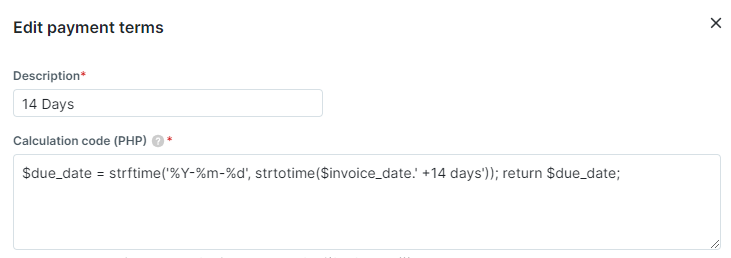
To set up your payment terms:
- In Actionstep, go to Admin > Accounting. The Accounting page appears.
- Click Edit for the Accounting preferences section. The Accounting System Preferences page appears.
- In the Payment terms section, click Create new payment terms. The New payment terms window appears.
- Provide the Description and Calculation code. (See the caution above for information about creating this code.)
- Click Save to save your changes. Or, optionally, select Create another to create a new payment term immediately after you save the current one.
- If you want to apply the new payment terms, once the new payment term has been created, click the Default purchase payment terms or Default sale payment terms drop-down list and choose the new term from the list of options.
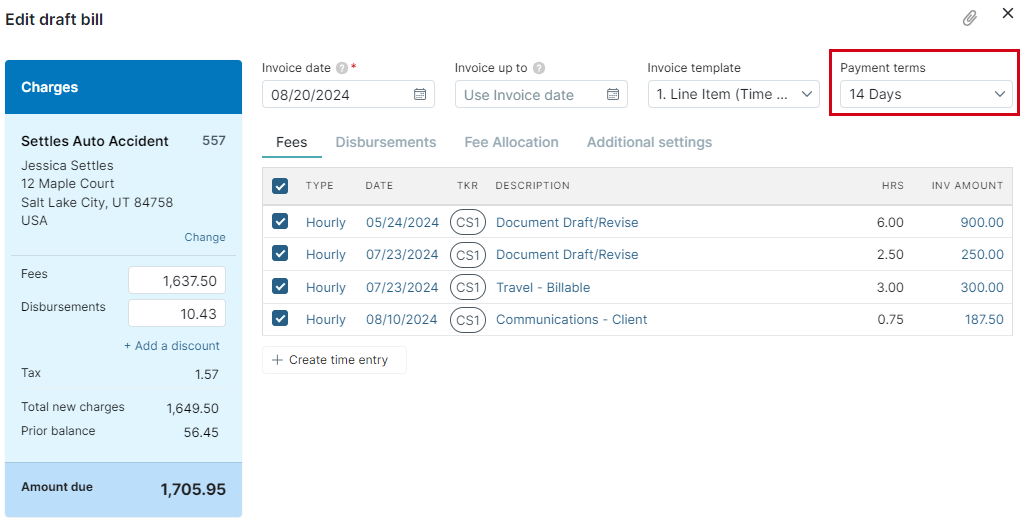
Once you've set the default, it will be suggested on the Edit Draft Bill window. You can still click the Payment terms drop-down list and choose a different term, if needed. (To create a bill, click the global Create button and choose Bill from Billing.)
Additional Resources:
Was this article helpful?
That’s Great!
Thank you for your feedback
Sorry! We couldn't be helpful
Thank you for your feedback
Feedback sent
We appreciate your effort and will try to fix the article